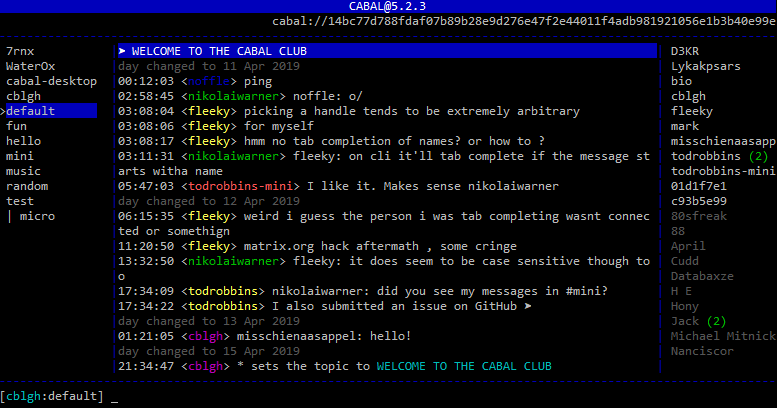
then connect to all of your saved cabals, by simply running cabal:
cabal
show saved cabals with --cabals and remove a saved cabal with --forget
cabal --cabalscabal --forget <key|alias>
Save an alias to a key
create a local name for a key.
cabal --alias <name> --key <key>cabal <name>
Scan a QR code to join a cabal:
Cabal can use a webcam connected to your computer to read a cabal key from a QR code.
For this to work, you'll need to install an additional system dependency:
Linux: sudo apt-get install fswebcam
MacOS: brew install imagesnap
# Hold up your QR code in front of the webcam and then run:cabal --qr
Headless mode
This will run cabal without a UI. You can use this to seed a cabal (e.g. on a VPS) and make its data more available:
cabal <key> --seed
Custom port
If you have a tightly configured firewall and need to port-forward a port, the default port Cabal uses is port 13331.
You can change this with the --port flag, or setting preferredPort in your .cabal.yml config file.
cabal <key> --seed --port 7331
Commands
/add, /cabal add a cabal/new create a new cabal/nick, /n change your display name/emote, /me write an old-school text emote/names display the names of the currently online peers/channels display the cabal's channels/panes set pane to navigate up and down in panes: channels, cabals/join, /j join a new channel/leave, /l leave a channel/clear clear the current backscroll/
Hotkeys
ctrl-l
redraw the screen ctrl-u
clear input line ctrl-w
delete last word in input up-arrow
cycle through command history down-arrow
cycle through command history home
go to start of input line end
go to end of input line ctrl-n
go to next channel ctrl-p
go to previous channel ctrl-a
go to next unread channel pageup
scroll up through backlog pagedown
scroll down through backlog shift-pageup
scroll up through nicklist shift-pagedown
scroll down through nicklist alt-[1,9]
select channels 1-9 alt-n
tab between the cabals & channels panes alt-l
tab toggle id suffixes on/off