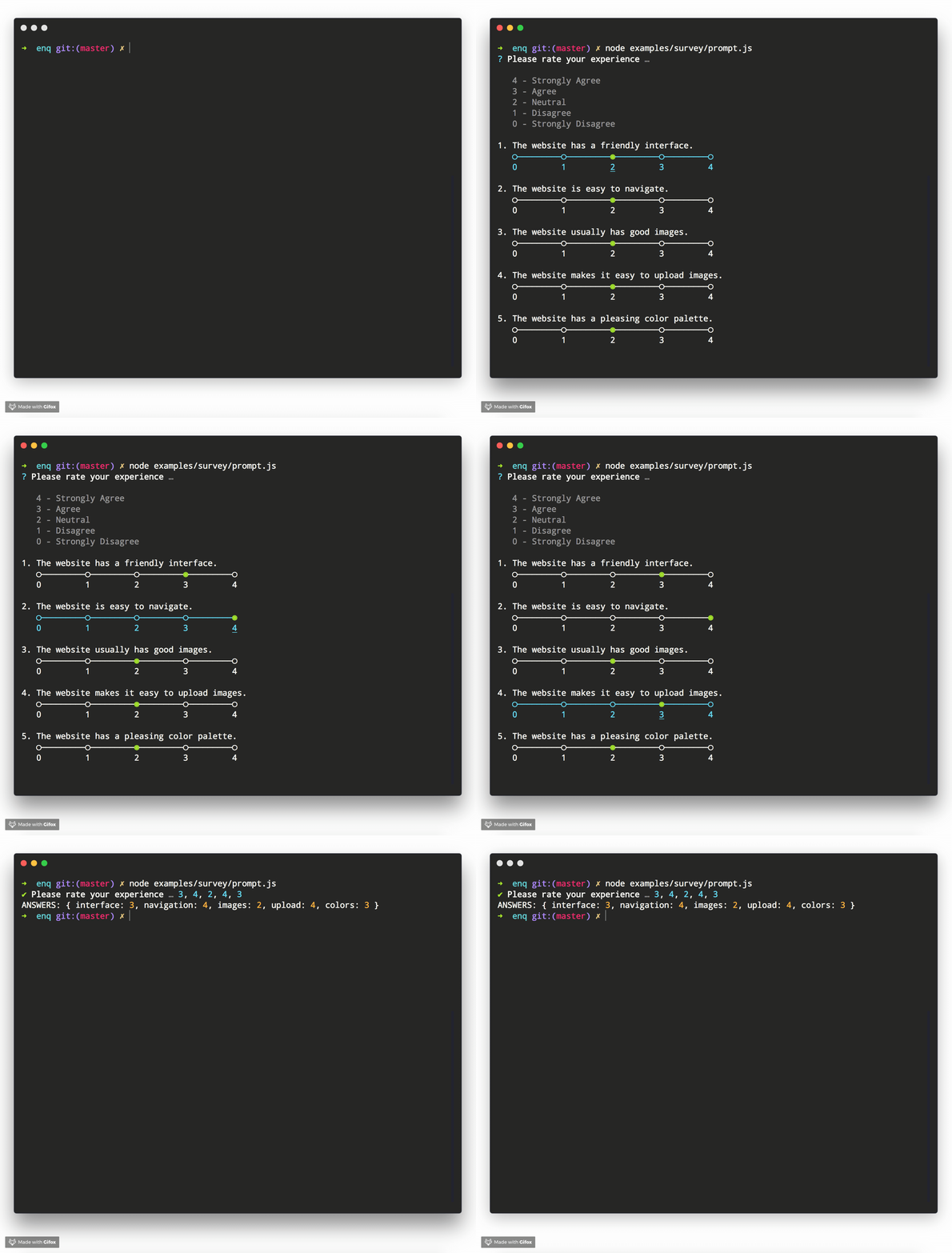
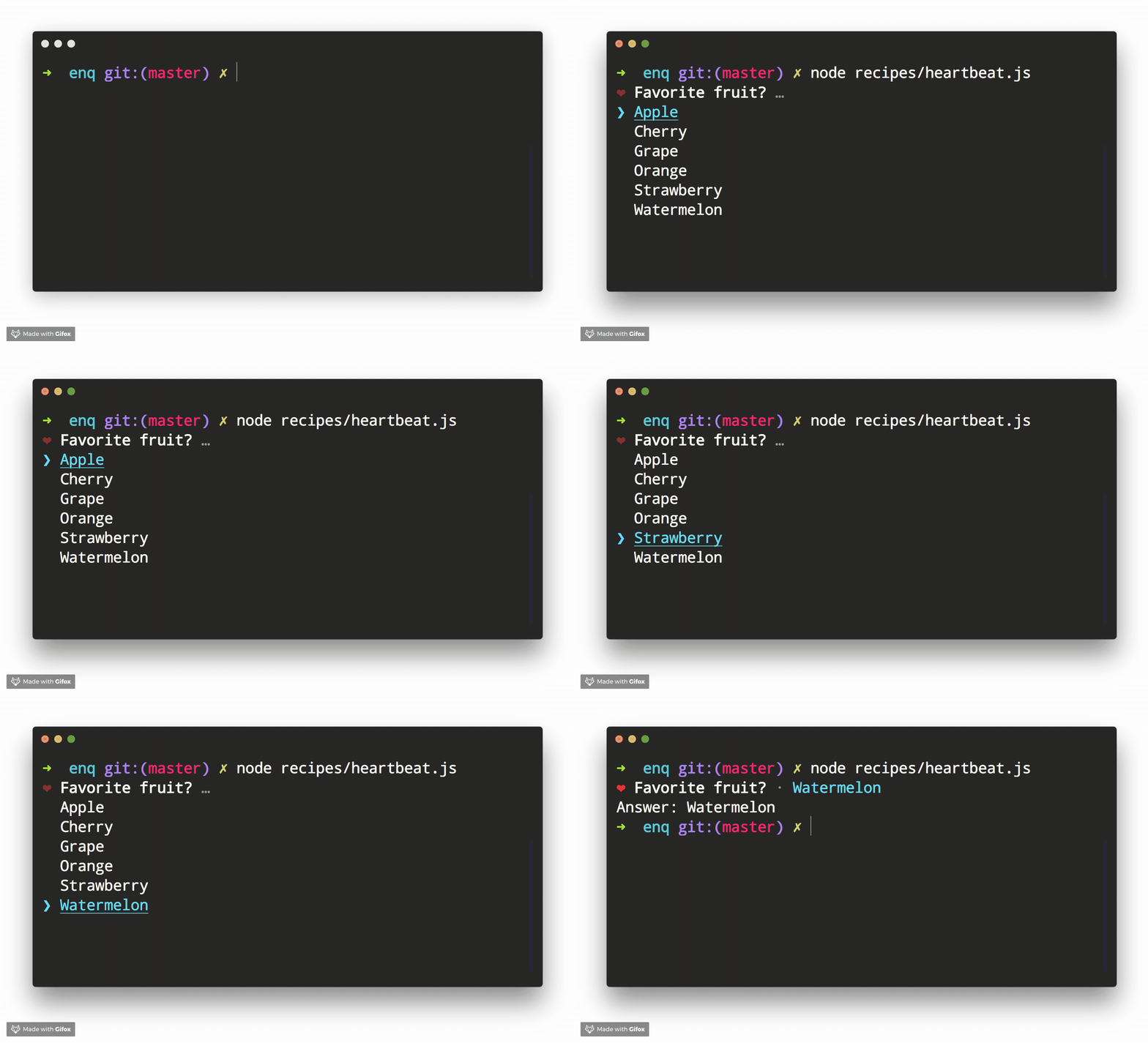
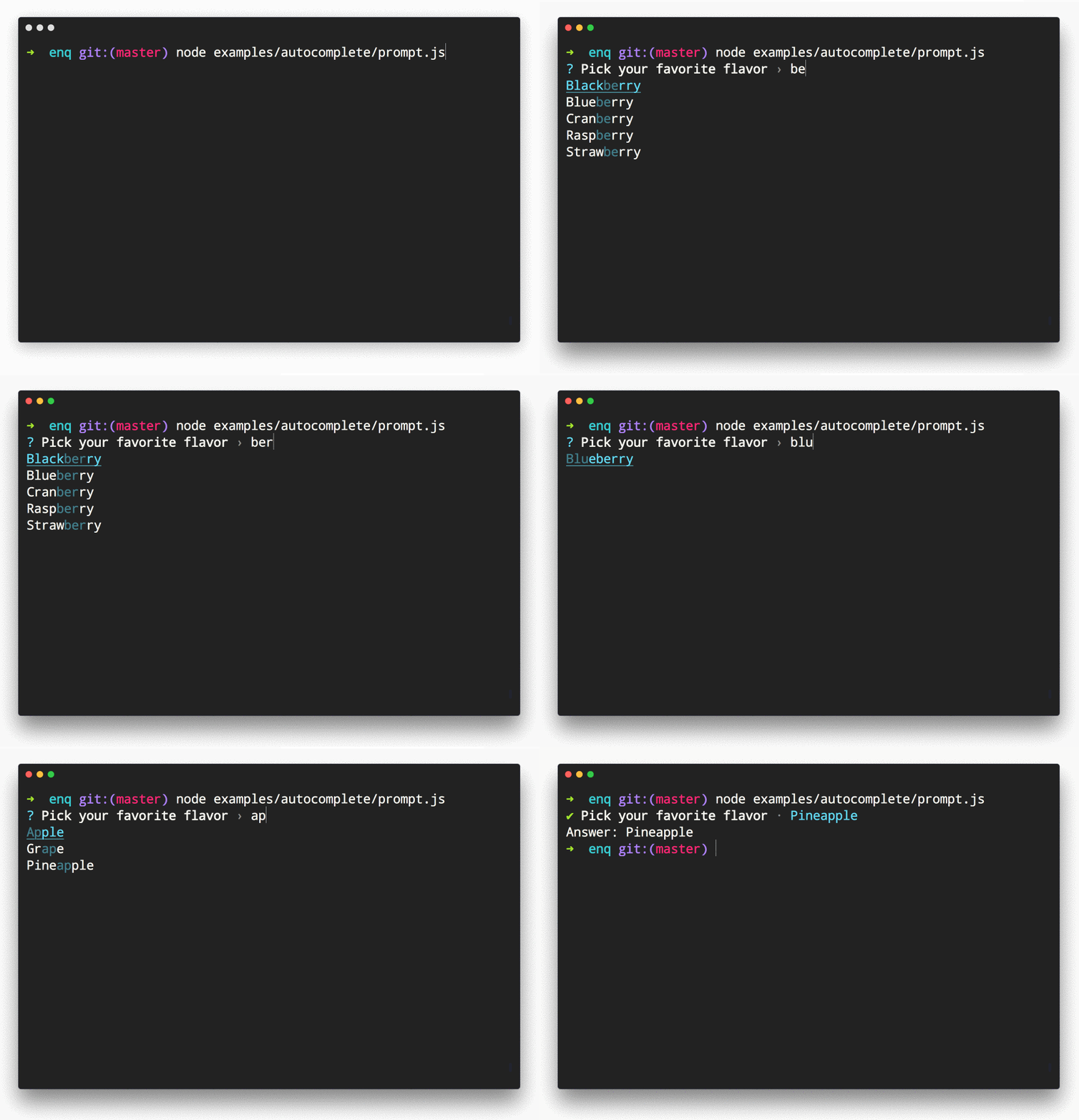
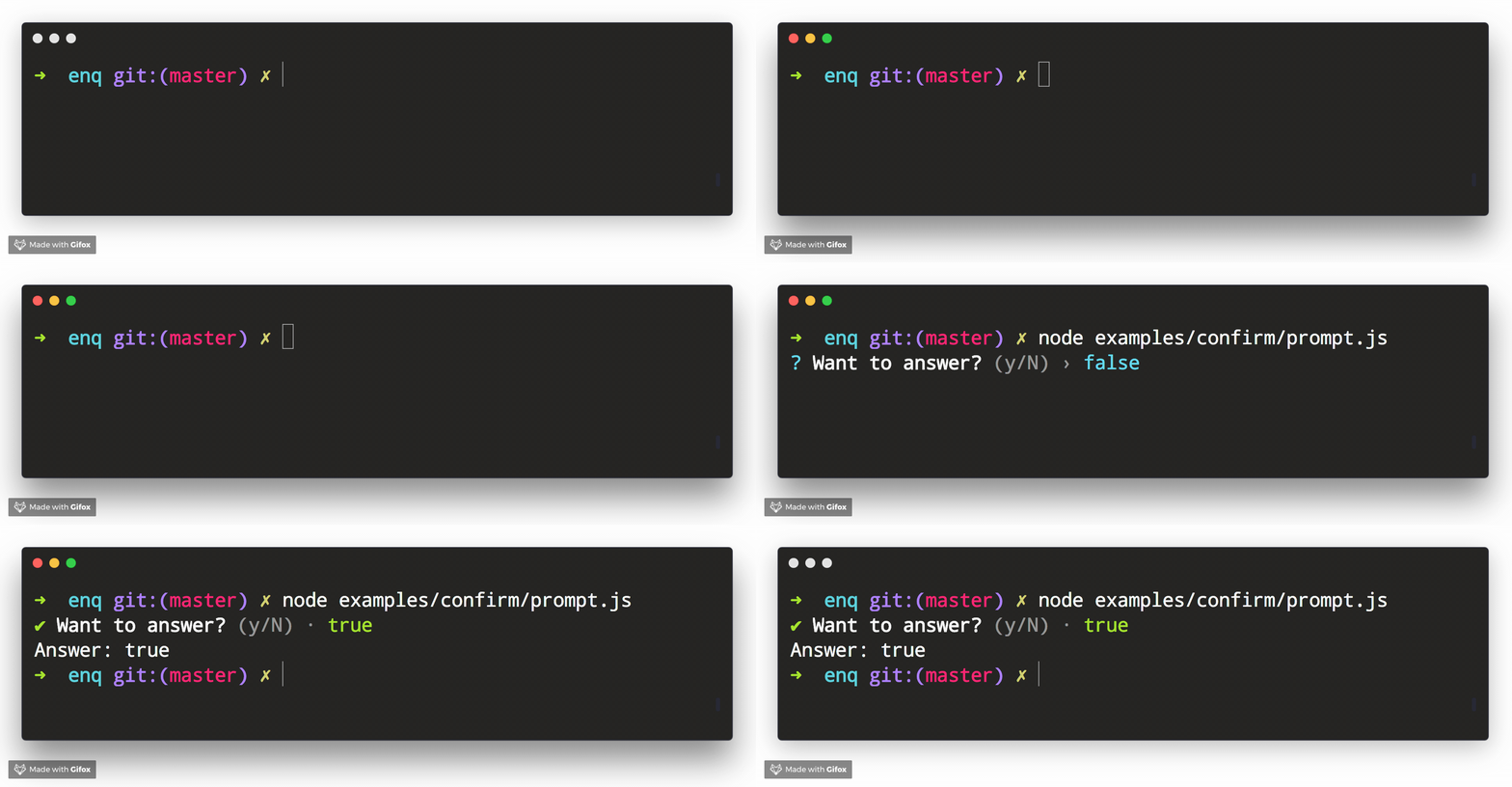
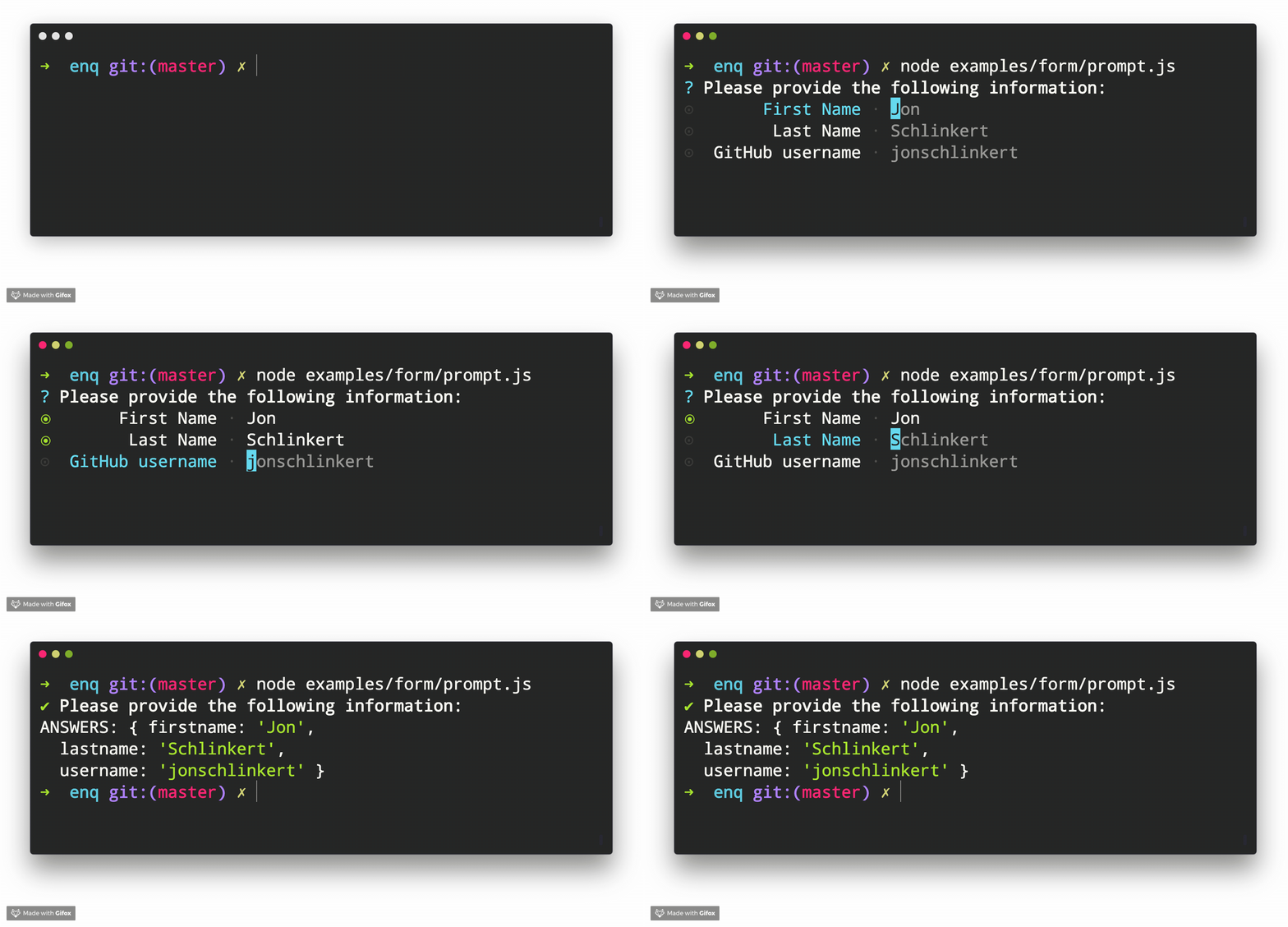
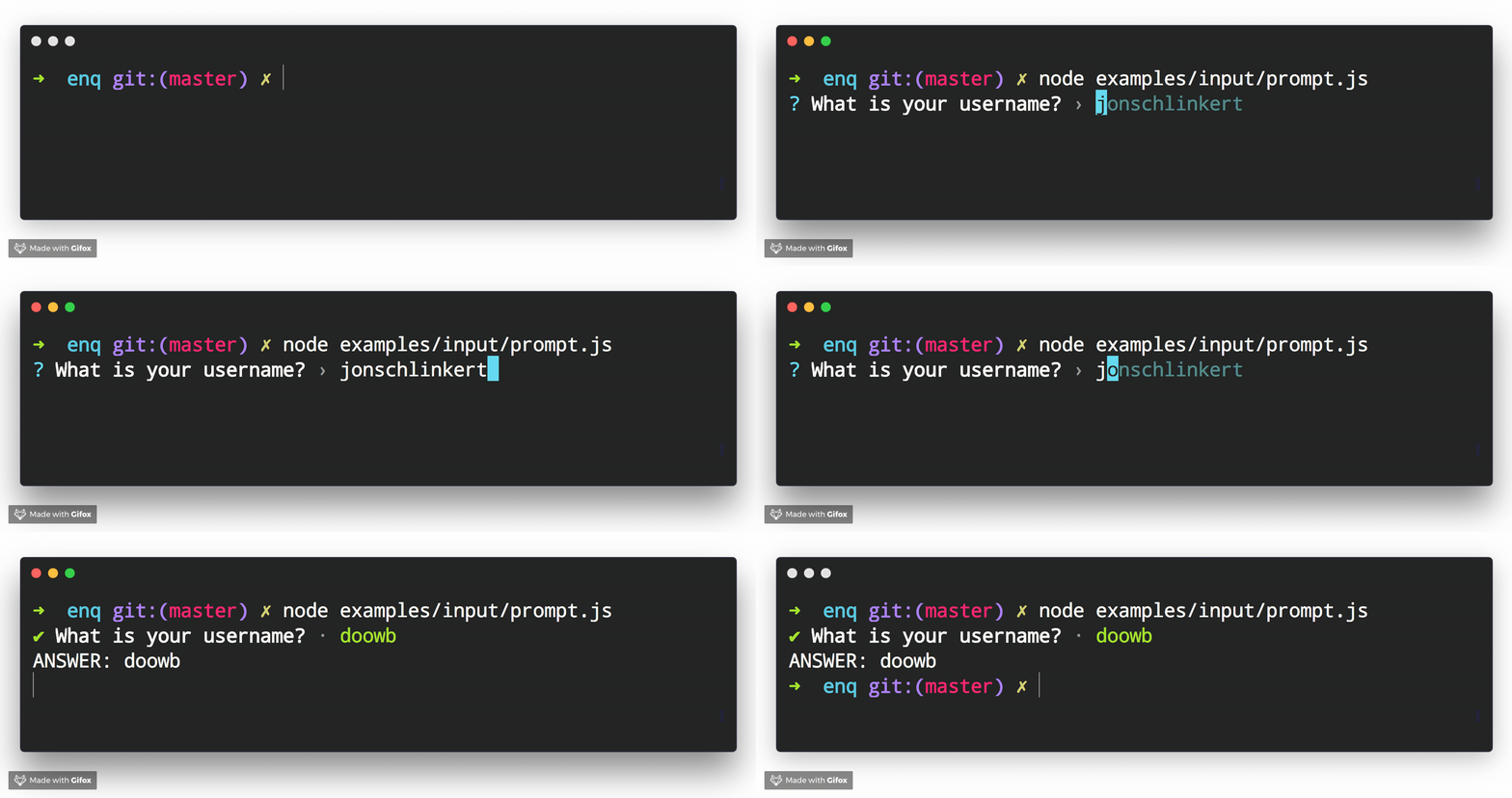
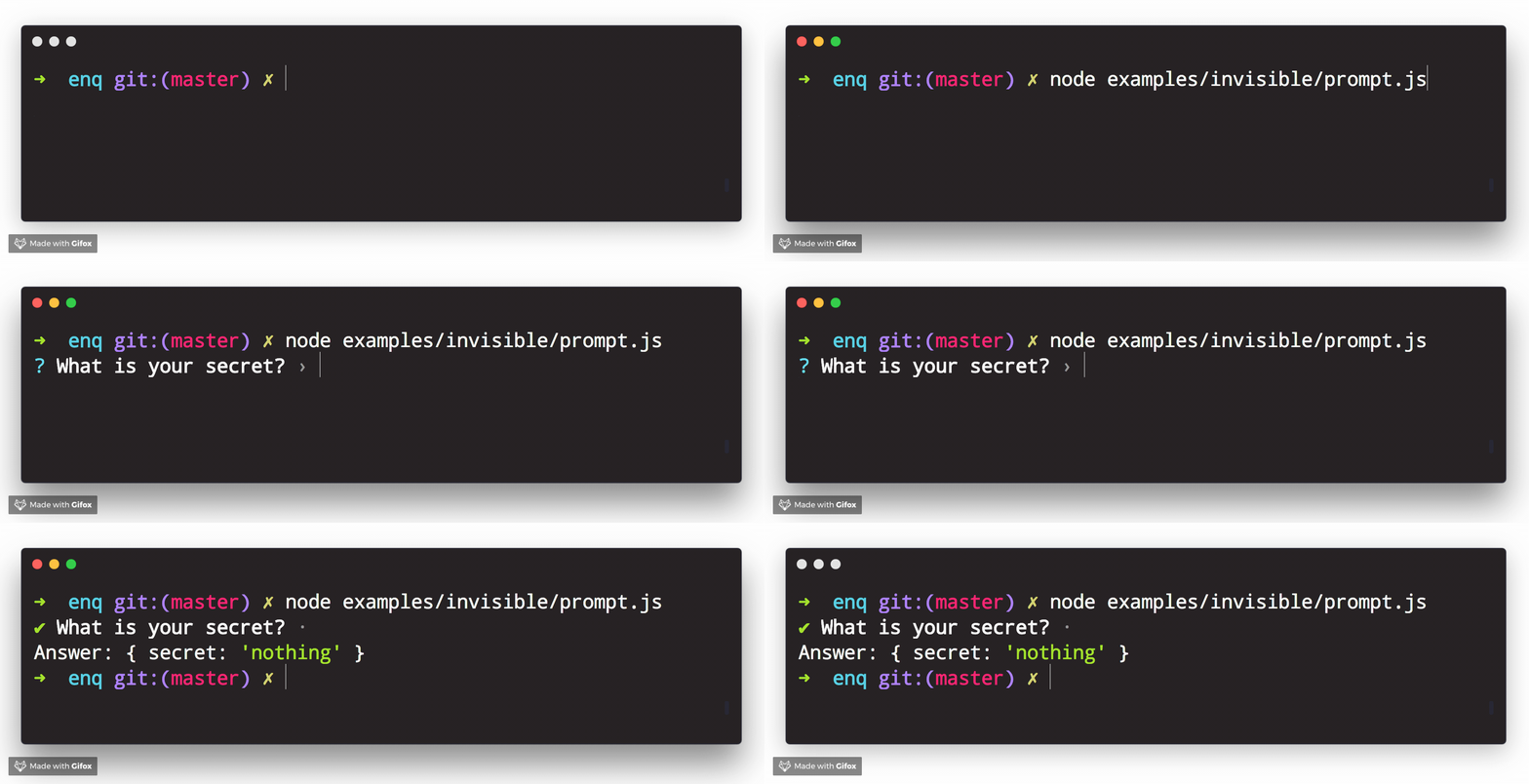
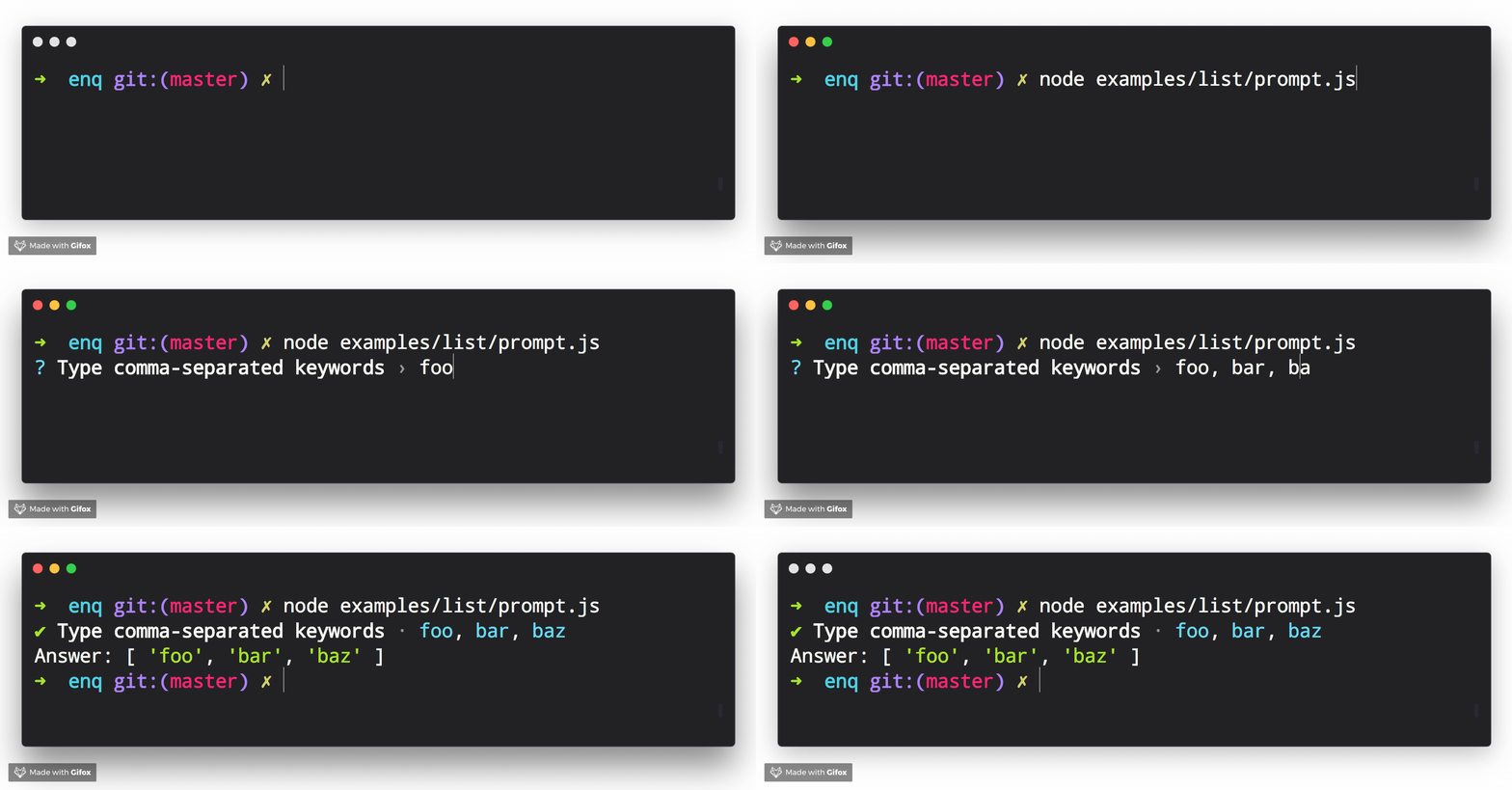
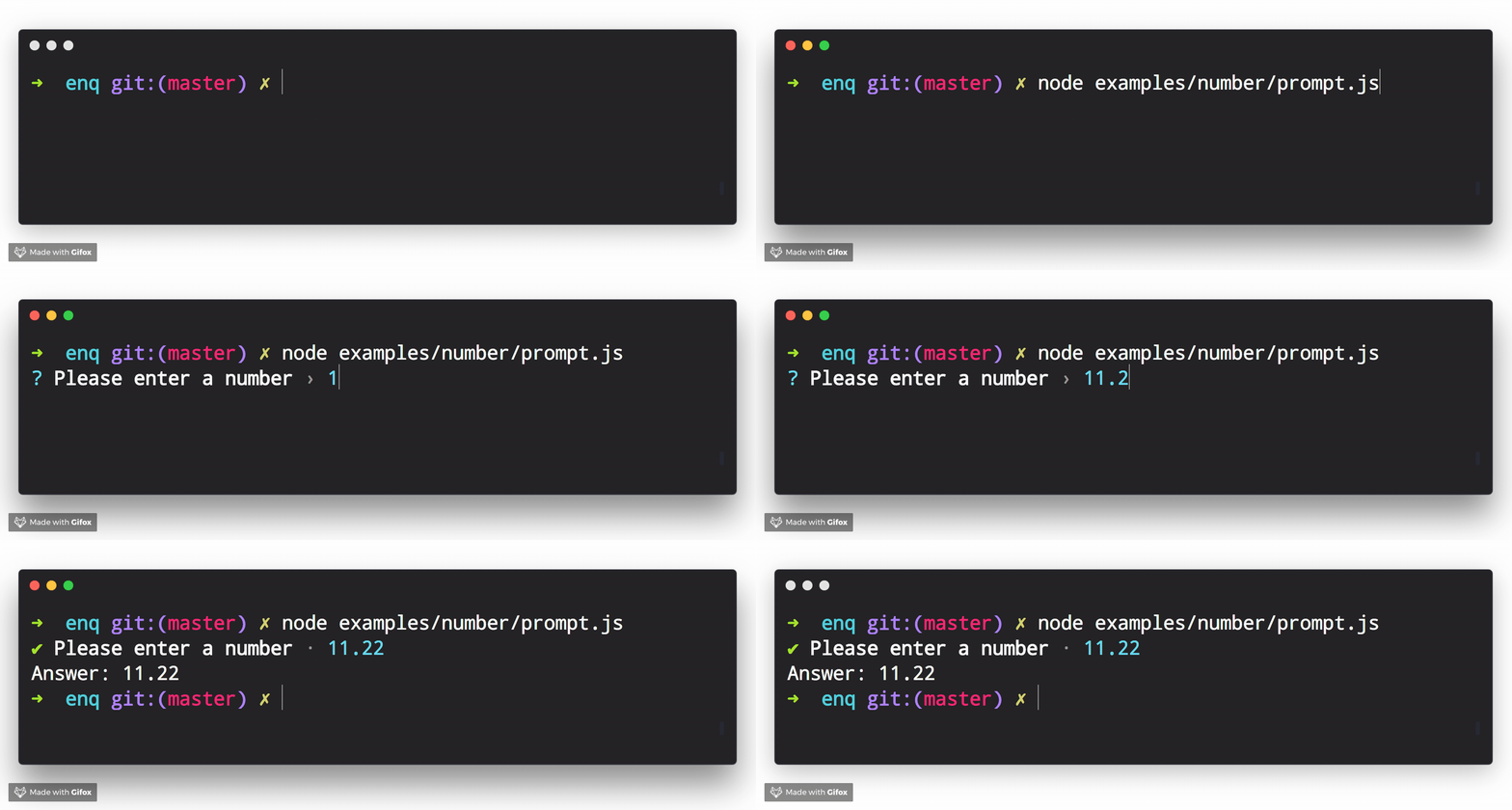
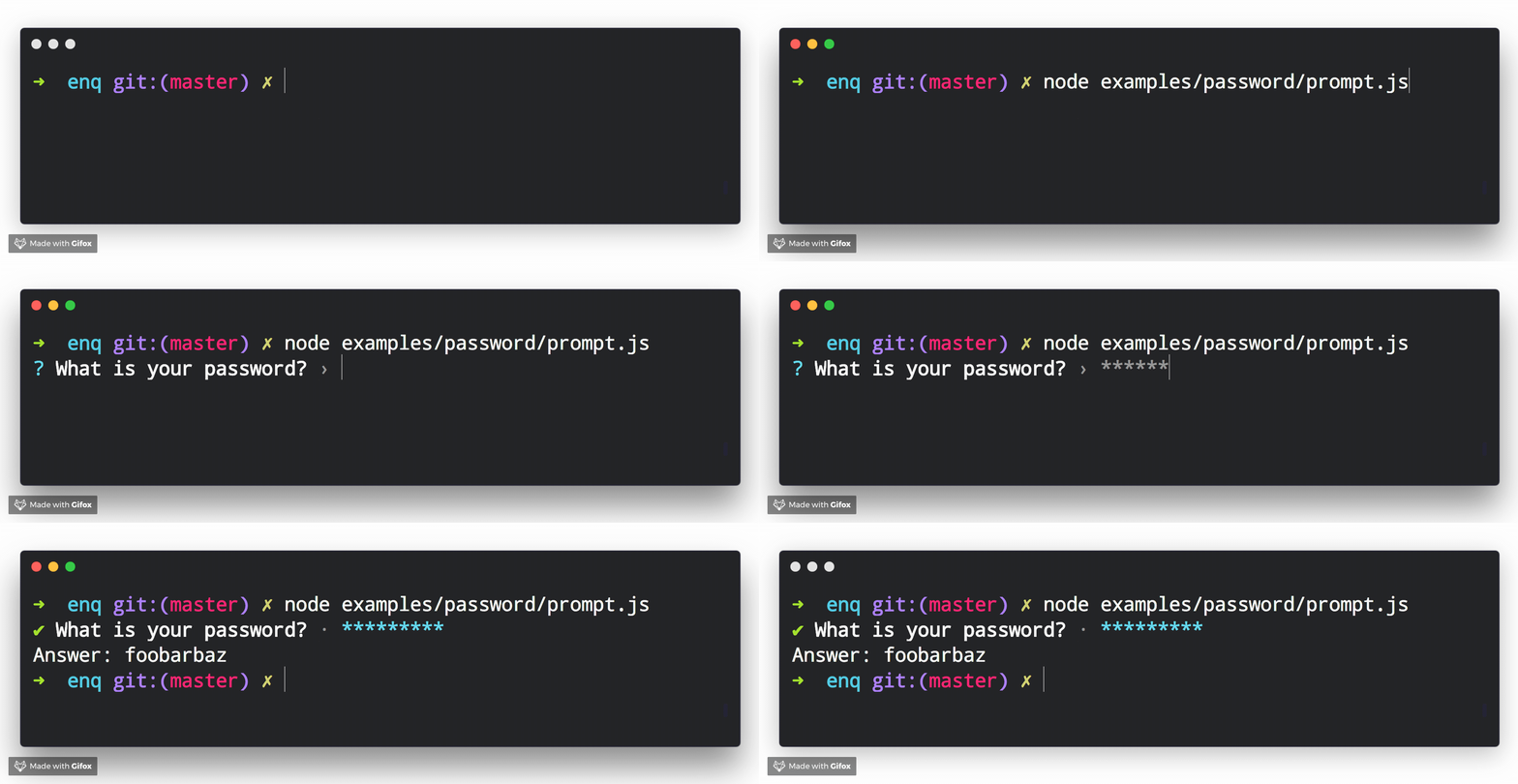
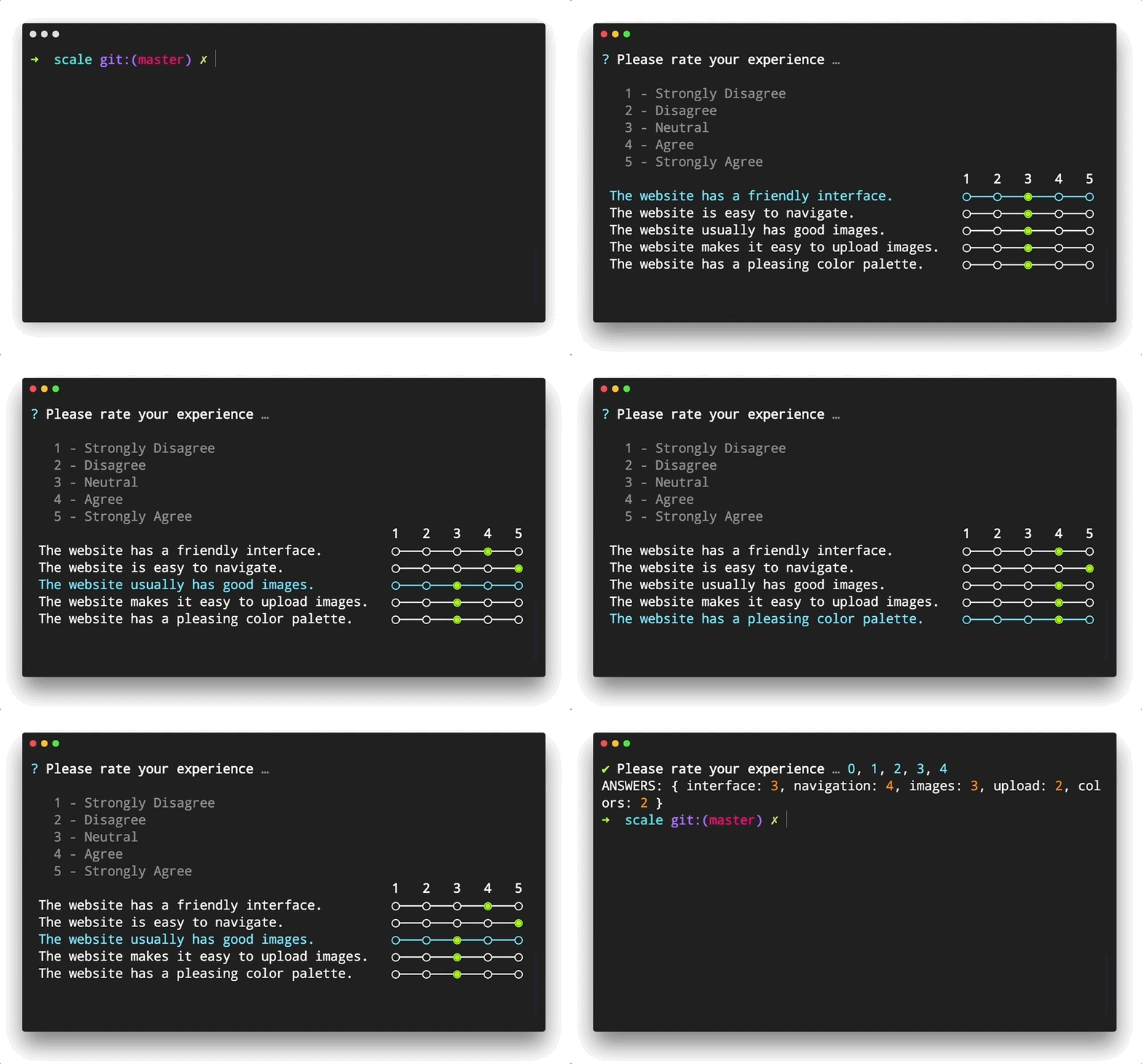
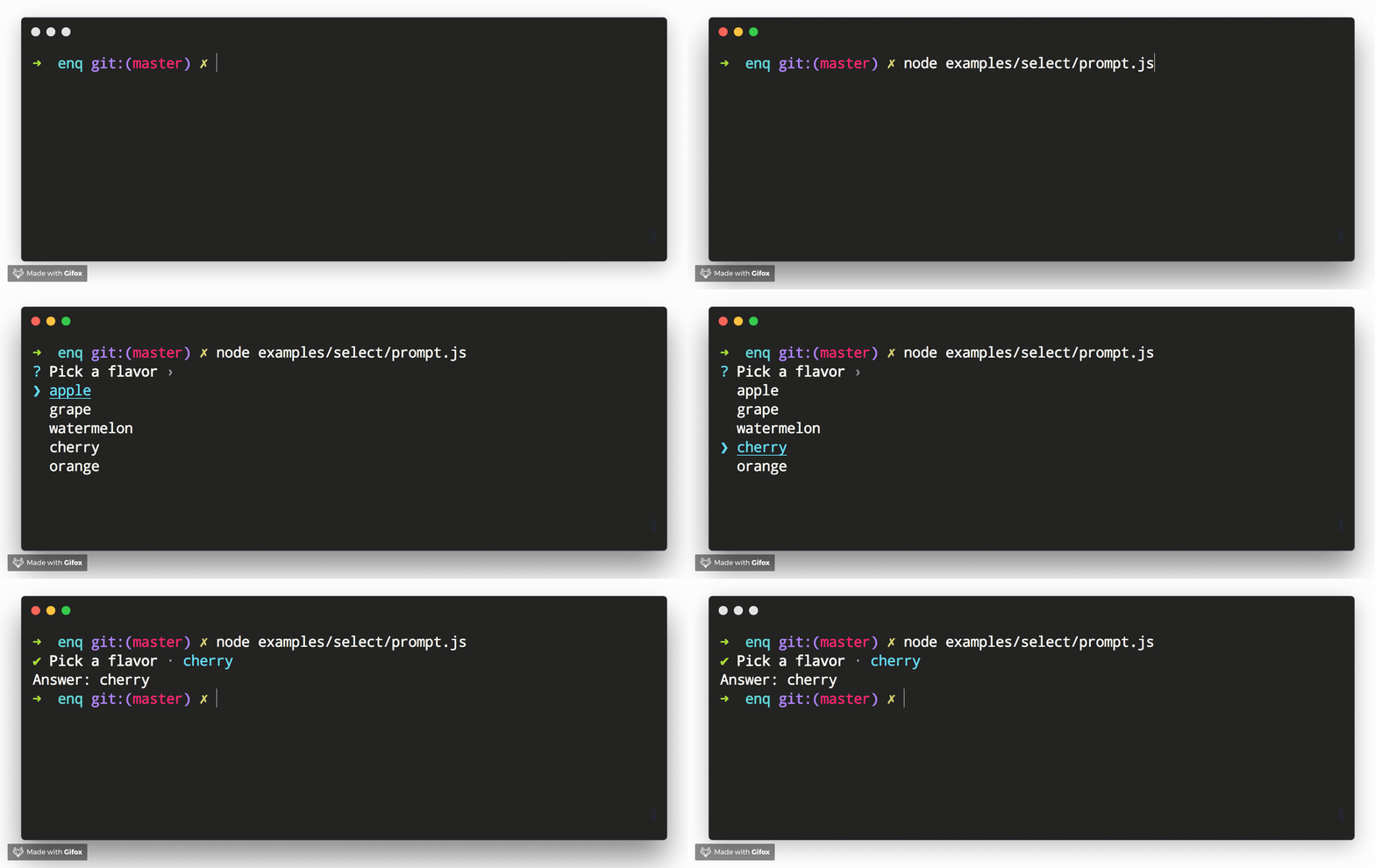
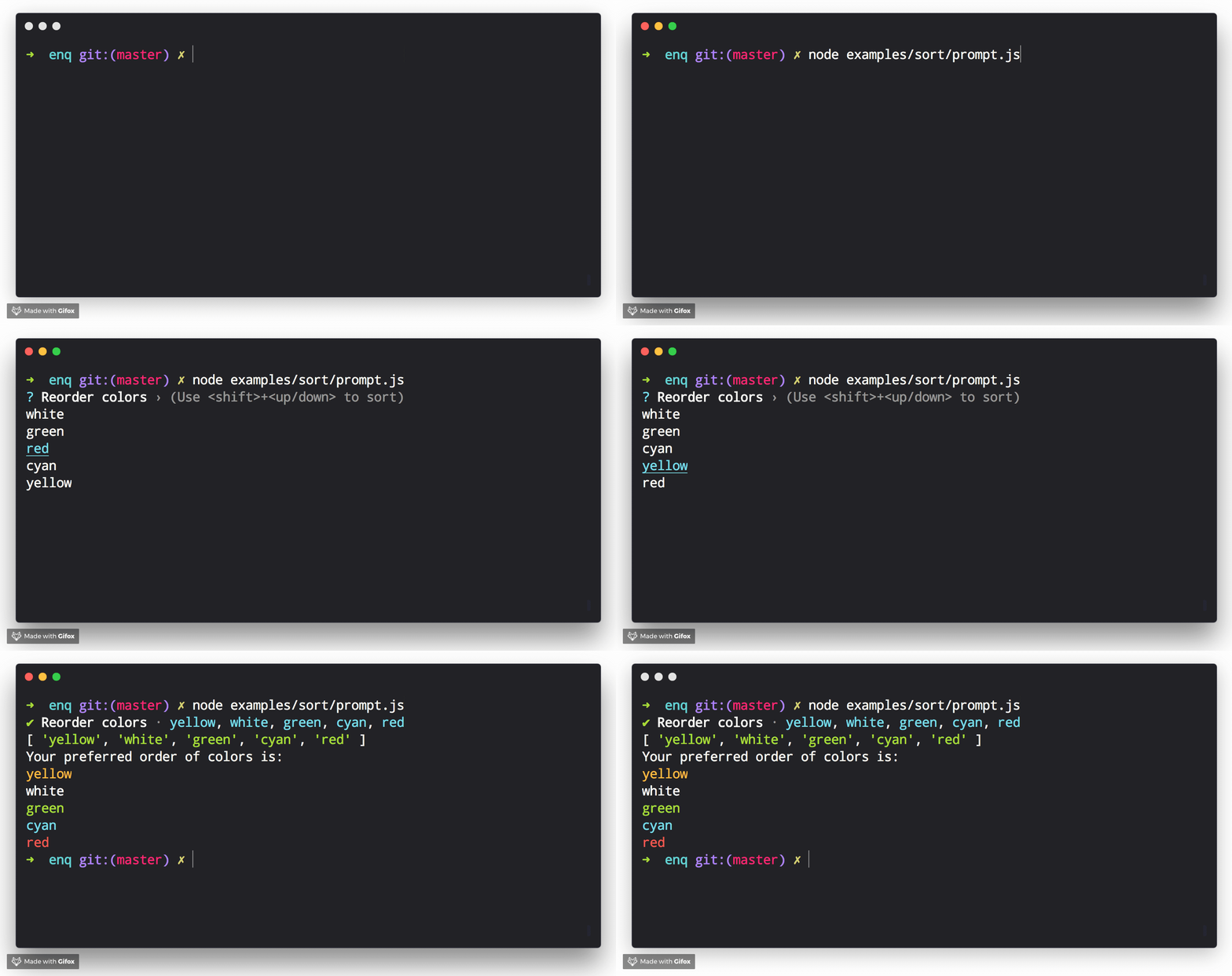
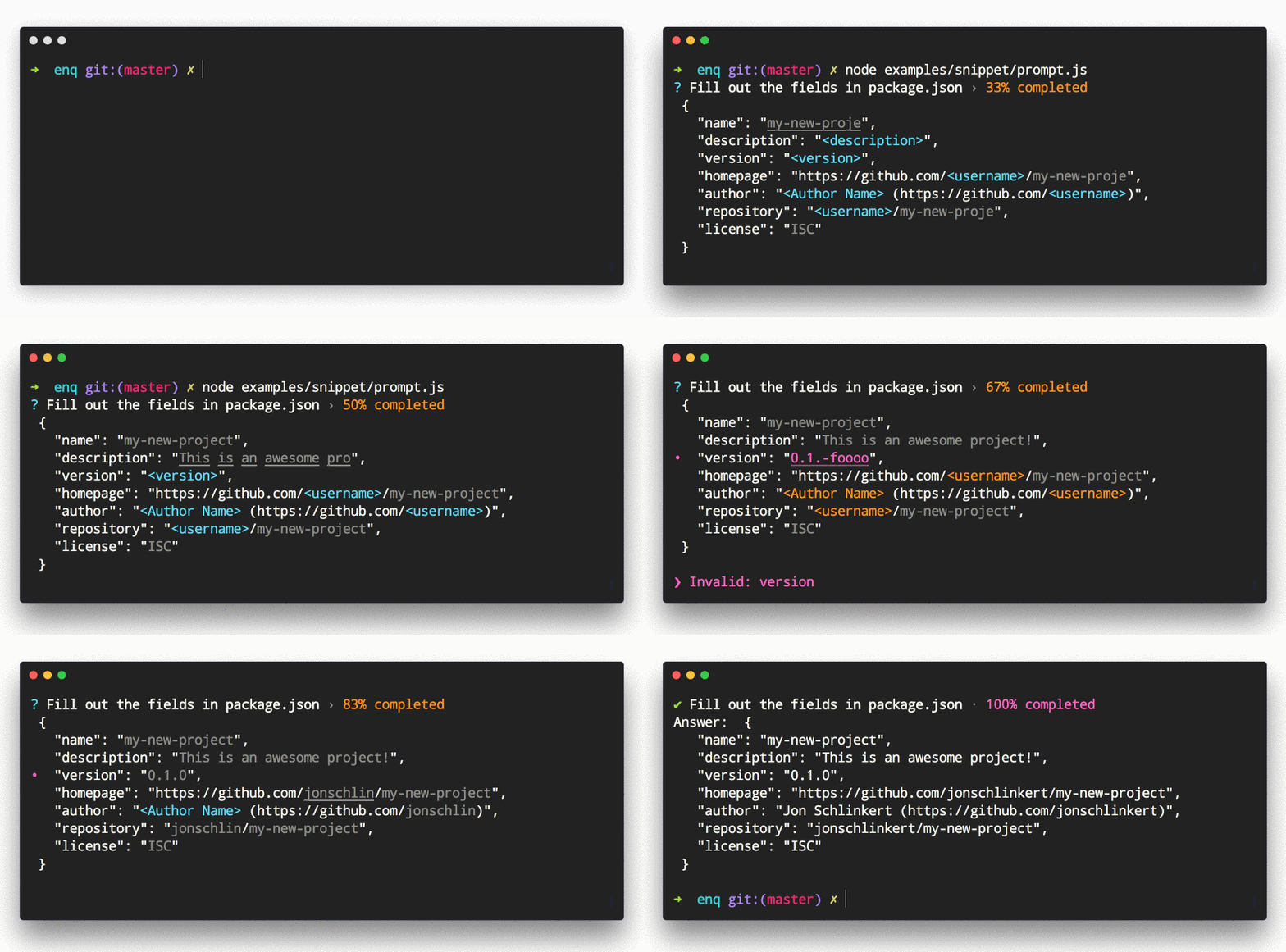
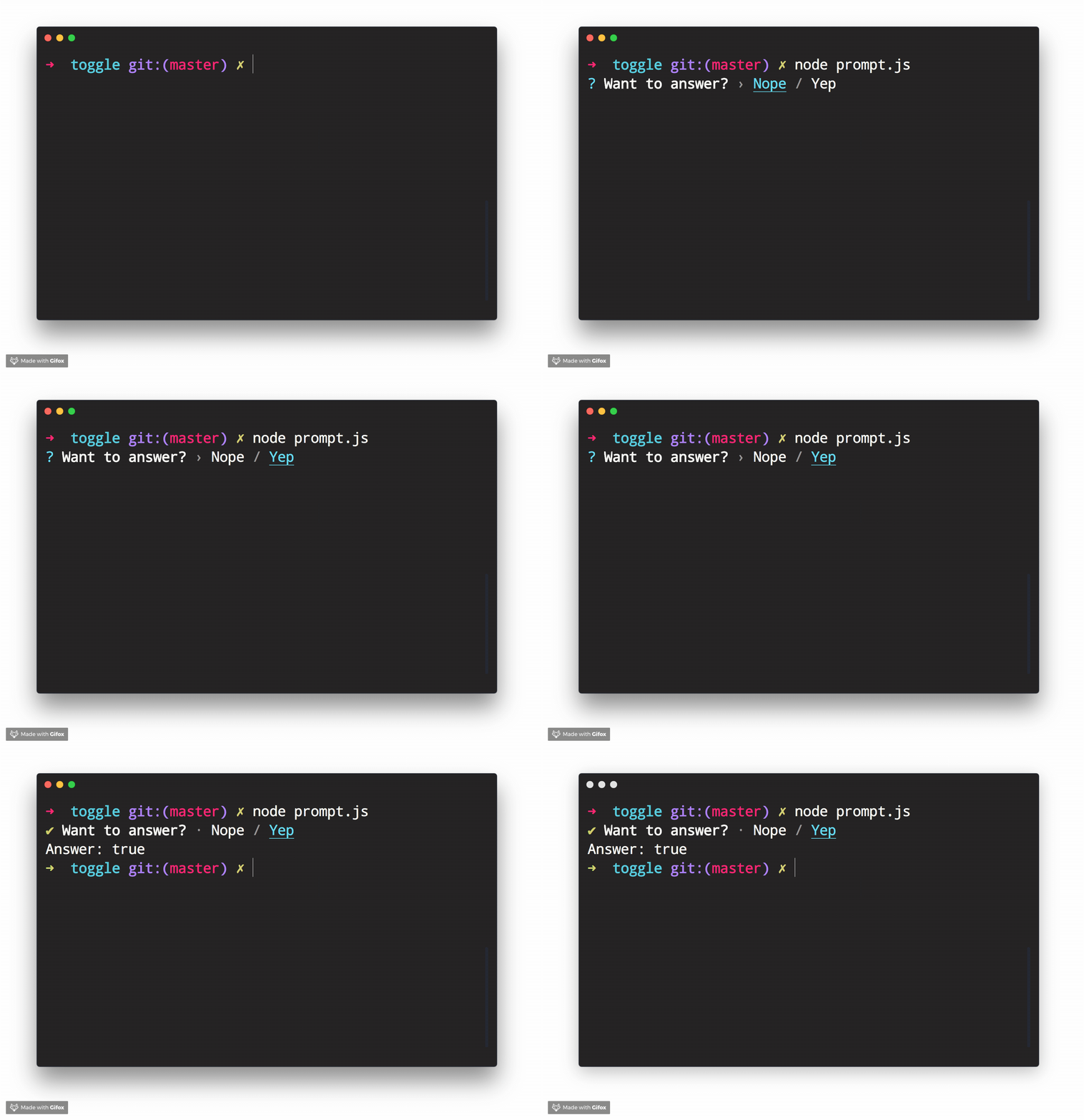
Stylish, intuitive and user-friendly prompt system. Fast and lightweight enough for small projects, powerful and extensible enough for the most advanced use cases.
Created by jonschlinkert and doowb, Enquirer is fast, easy to use, and lightweight enough for small projects, while also being powerful and customizable enough for the most advanced use cases.
Easy to implement - Uses promises and async/await and sensible defaults to make prompts easy to create and implement.
Easy to use - Thrill your users with a better experience! Navigating around input and choices is a breeze. You can even create quizzes, or record and playback key bindings to aid with tutorials and videos.
Intuitive - Keypress combos are available to simplify usage.
Flexible - All prompts can be used standalone or chained together.
Stylish - Easily override semantic styles and symbols for any part of the prompt.
Extensible - Easily create and use custom prompts by extending Enquirer's built-in prompts.
Pluggable - Add advanced features to Enquirer using plugins.
Validation - Optionally validate user input with any prompt.
Well tested - All prompts are well-tested, and tests are easy to create without having to use brittle, hacky solutions to spy on prompts or "inject" values.
Examples - There are numerous examples available to help you get started.
If you like Enquirer, please consider starring or tweeting about this project to show your support. Thanks!
>_ Ready to start making prompts your users will love? ▌
❯ Getting started
Get started with Enquirer, the most powerful and easy-to-use Node.js library for creating interactive CLI prompts.
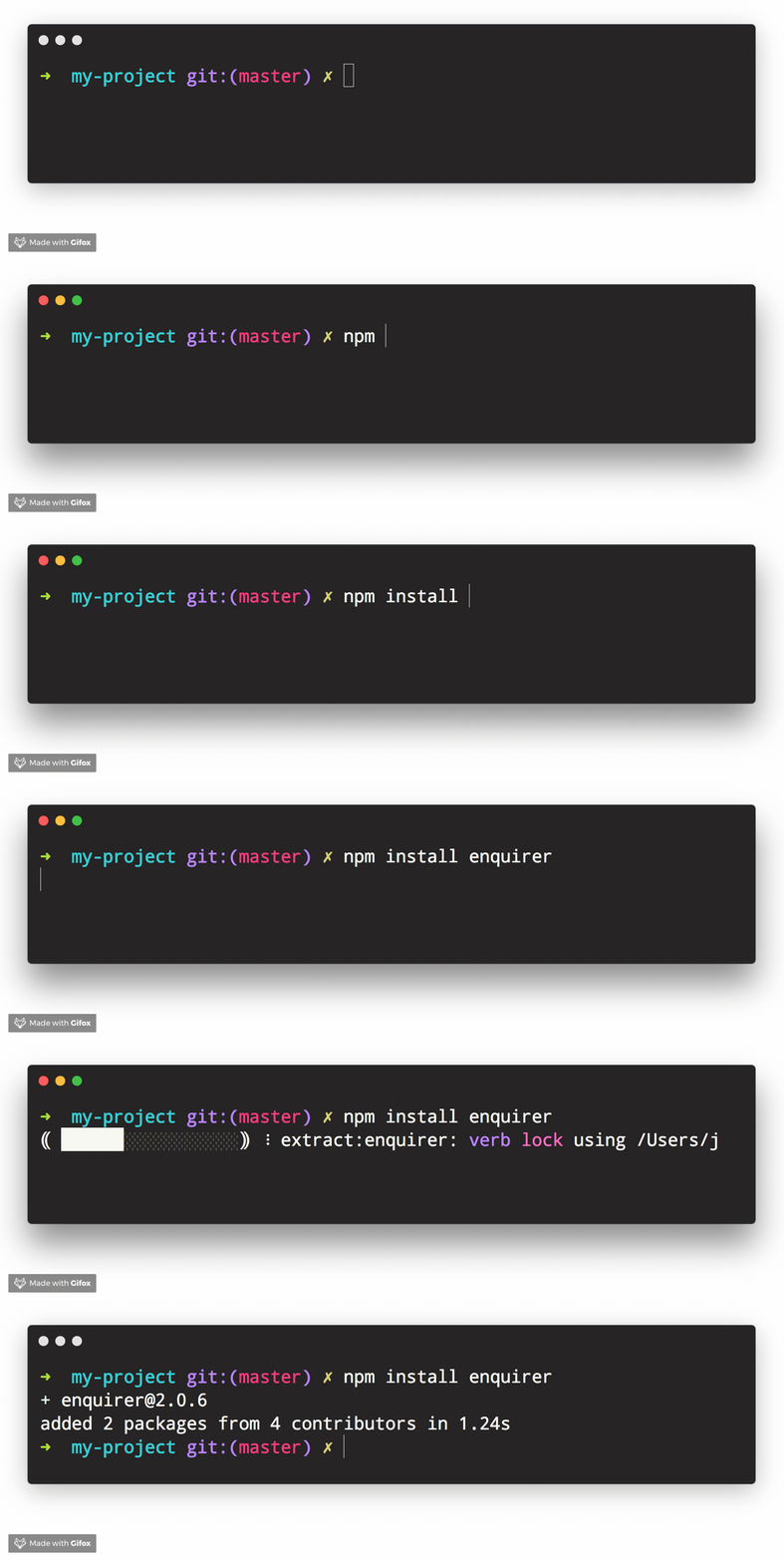
Add Enquirer to your JavaScript project with following line of code.
const Enquirer = require('enquirer');
The main export of this library is the Enquirer class, which has methods and features designed to simplify running prompts.
const { prompt } = require('enquirer');const questions = [ { type: 'input', name: 'username', message: 'What is your username?' }, { type: 'password', name: 'password', message: 'What is your password?' }];const answers = await prompt(questions);console.log(answers);
Prompts control how values are rendered and returned
Each individual prompt is a class with special features and functionality for rendering the types of values you want to show users in the terminal, and subsequently returning the types of values you need to use in your application.
How can I customize prompts?
Below in this guide you will find information about creating custom prompts. For now, we'll focus on how to customize an existing prompt.
All of the individual prompt classes in this library are exposed as static properties on Enquirer. This allows them to be used directly without using enquirer.prompt().
Use this approach if you need to modify a prompt instance, or listen for events on the prompt.
Example
const { Input } = require('enquirer');const prompt = new Input({ name: 'username', message: 'What is your username?'});prompt.run() .then(answer => console.log('Username:', answer)) .catch(console.error);
Prompt function that takes a "question" object or array of question objects, and returns an object with responses from the user.
Params
questions{Array|Object}: Options objects for one or more prompts to run.
returns{Promise}: Promise that returns an "answers" object with the user's responses.
Example
const { prompt } = require('enquirer');const response = await prompt({ type: 'input', name: 'username', message: 'What is your username?'});console.log(response);
❯ Prompts
This section is about Enquirer's prompts: what they look like, how they work, how to run them, available options, and how to customize the prompts or create your own prompt concept.
Getting started with Enquirer's prompts
Prompt - The base Prompt class used by other prompts
Each prompt takes an options object (aka "question" object), that implements the following interface:
{ // required type: string | function, name: string | function, message: string | function | async function, // optional skip: boolean | function | async function, initial: string | function | async function, format: function | async function, result: function | async function, validate: function | async function,}
Each property of the options object is described below:
Property
Required?
Type
Description
type
yes
string|function
Enquirer uses this value to determine the type of prompt to run, but it's optional when prompts are run directly.
name
yes
string|function
Used as the key for the answer on the returned values (answers) object.
message
yes
string|function
The message to display when the prompt is rendered in the terminal.
skip
no
boolean|function
If true it will not ask that prompt.
initial
no
string|function
The default value to return if the user does not supply a value.
format
no
function
Function to format user input in the terminal.
result
no
function
Function to format the final submitted value before it's returned.
validate
no
function
Function to validate the submitted value before it's returned. This function may return a boolean or a string. If a string is returned it will be used as the validation error message.
Prompt that asks for username and password to authenticate the user. The default implementation of authenticate function in BasicAuth prompt is to compare the username and password with the values supplied while running the prompt. The implementer is expected to override the authenticate function with a custom logic such as making an API request to a server to authenticate the username and password entered and expect a token back.
Each type is a low-level class that may be used as a starting point for creating higher level prompts. Continue reading to learn how.
ArrayPrompt
The ArrayPrompt class is used for creating prompts that display a list of choices in the terminal. For example, Enquirer uses this class as the basis for the Select and Survey prompts.
Options
In addition to the options available to all prompts, Array prompts also support the following options.
Option
Required?
Type
Description
autofocus
no
string|number
The index or name of the choice that should have focus when the prompt loads. Only one choice may have focus at a time.
stdin
no
stream
The input stream to use for emitting keypress events. Defaults to process.stdin.
stdout
no
stream
The output stream to use for writing the prompt to the terminal. Defaults to process.stdout.
Properties
Array prompts have the following instance properties and getters.
Property name
Type
Description
choices
array
Array of choices that have been normalized from choices passed on the prompt options.
cursor
number
Position of the cursor relative to the user input (string).
enabled
array
Returns an array of enabled choices.
focused
array
Returns the currently selected choice in the visible list of choices. This is similar to the concept of focus in HTML and CSS. Focused choices are always visible (on-screen). When a list of choices is longer than the list of visible choices, and an off-screen choice is focused, the list will scroll to the focused choice and re-render.
focused
Gets the currently selected choice. Equivalent to prompt.choices[prompt.index].
index
number
Position of the pointer in the visible list (array) of choices.
limit
number
The number of choices to display on-screen.
selected
array
Either a list of enabled choices (when options.multiple is true) or the currently focused choice.
visible
string
Methods
Method
Description
pointer()
Returns the visual symbol to use to identify the choice that currently has focus. The ❯ symbol is often used for this. The pointer is not always visible, as with the autocomplete prompt.
indicator()
Returns the visual symbol that indicates whether or not a choice is checked/enabled.
focus()
Sets focus on a choice, if it can be focused.
Choices
Array prompts support the choices option, which is the array of choices users will be able to select from when rendered in the terminal.
The following properties are supported on choice objects.
Option
Type
Description
name
string
The unique key to identify a choice
message
string
The message to display in the terminal. name is used when this is undefined.
value
string
Value to associate with the choice. Useful for creating key-value pairs from user choices. name is used when this is undefined.
choices
array
Array of "child" choices.
hint
string
Help message to display next to a choice.
role
string
Determines how the choice will be displayed. Currently the only role supported is separator. Additional roles may be added in the future (like heading, etc). Please create a [feature request]
enabled
boolean
Enabled a choice by default. This is only supported when options.multiple is true or on prompts that support multiple choices, like MultiSelect.
disabled
boolean|string
Disable a choice so that it cannot be selected. This value may either be true, false, or a message to display.
indicator
string|function
Custom indicator to render for a choice (like a check or radio button).
The AuthPrompt is used to create prompts to log in user using any authentication method. For example, Enquirer uses this class as the basis for the BasicAuth Prompt. You can also find prompt examples in examples/auth/ folder that utilizes AuthPrompt to create OAuth based authentication prompt or a prompt that authenticates using time-based OTP, among others.
AuthPrompt has a factory function that creates an instance of AuthPrompt class and it expects an authenticate function, as an argument, which overrides the authenticate function of the AuthPrompt class.
Methods
Method
Description
authenticate()
Contain all the authentication logic. This function should be overridden to implement custom authentication logic. The default authenticate function throws an error if no other function is provided.
Choices
Auth prompt supports the choices option, which is the similar to the choices used in Form Prompt.
const { Prompt } = require('enquirer');class HaiKarate extends Prompt { constructor(options = {}) { super(options); this.value = options.initial || 0; this.cursorHide(); } up() { this.value++; this.render(); } down() { this.value--; this.render(); } render() { this.clear(); // clear previously rendered prompt from the terminal this.write(`${this.state.message}: ${this.value}`); }}// Use the prompt by creating an instance of your custom prompt class.const prompt = new HaiKarate({ message: 'How many sprays do you want?', initial: 10});prompt.run() .then(answer => console.log('Sprays:', answer)) .catch(console.error);
If you want to be able to specify your prompt by type so that it may be used alongside other prompts, you will need to first create an instance of Enquirer.
const Enquirer = require('enquirer');const enquirer = new Enquirer();
Then use the .register() method to add your custom prompt.
enquirer.register('haikarate', HaiKarate);
Now you can do the following when defining "questions".
let spritzer = require('cologne-drone');let answers = await enquirer.prompt([ { type: 'haikarate', name: 'cologne', message: 'How many sprays do you need?', initial: 10, async onSubmit(name, value) { await spritzer.activate(value); //<= activate drone return value; } }]);
❯ Key Bindings
All prompts
These key combinations may be used with all prompts.
These key combinations may be used on prompts that support multiple choices, such as the multiselect prompt, or the select prompt when the multiple options is true.
command
description
space
Toggle the currently selected choice when options.multiple is true.
number
Move the pointer to the choice at the given index. Also toggles the selected choice when options.multiple is true.
a
Toggle all choices to be enabled or disabled.
i
Invert the current selection of choices.
g
Toggle the current choice group.
Hide/show choices
command
description
fn + up
Decrease the number of visible choices by one.
fn + down
Increase the number of visible choices by one.
Move/lock Pointer
command
description
number
Move the pointer to the choice at the given index. Also toggles the selected choice when options.multiple is true.
up
Move the pointer up.
down
Move the pointer down.
ctrl + a
Move the pointer to the first visible choice.
ctrl + e
Move the pointer to the last visible choice.
shift + up
Scroll up one choice without changing pointer position (locks the pointer while scrolling).
shift + down
Scroll down one choice without changing pointer position (locks the pointer while scrolling).
command (Mac)
command (Windows)
description
fn + left
home
Move the pointer to the first choice in the choices array.
fn + right
end
Move the pointer to the last choice in the choices array.
Time it takes for the module to load the first time (average of 3 runs):
enquirer: 4.013msinquirer: 286.717ms
❯ About
Contributing
Pull requests and stars are always welcome. For bugs and feature requests, please create an issue.
Todo
We're currently working on documentation for the following items. Please star and watch the repository for updates!
Customizing symbols
Customizing styles (palette)
Customizing rendered input
Customizing returned values
Customizing key bindings
Question validation
Choice validation
Skipping questions
Async choices
Async timers: loaders, spinners and other animations
Links to examples
Running Tests
Running and reviewing unit tests is a great way to get familiarized with a library and its API. You can install dependencies and run tests with the following command:
npm install && npm test
yarn && yarn test
Building docs
(This project's readme.md is generated by verb, please don't edit the readme directly. Any changes to the readme must be made in the .verb.md readme template.)
To generate the readme, run the following command: