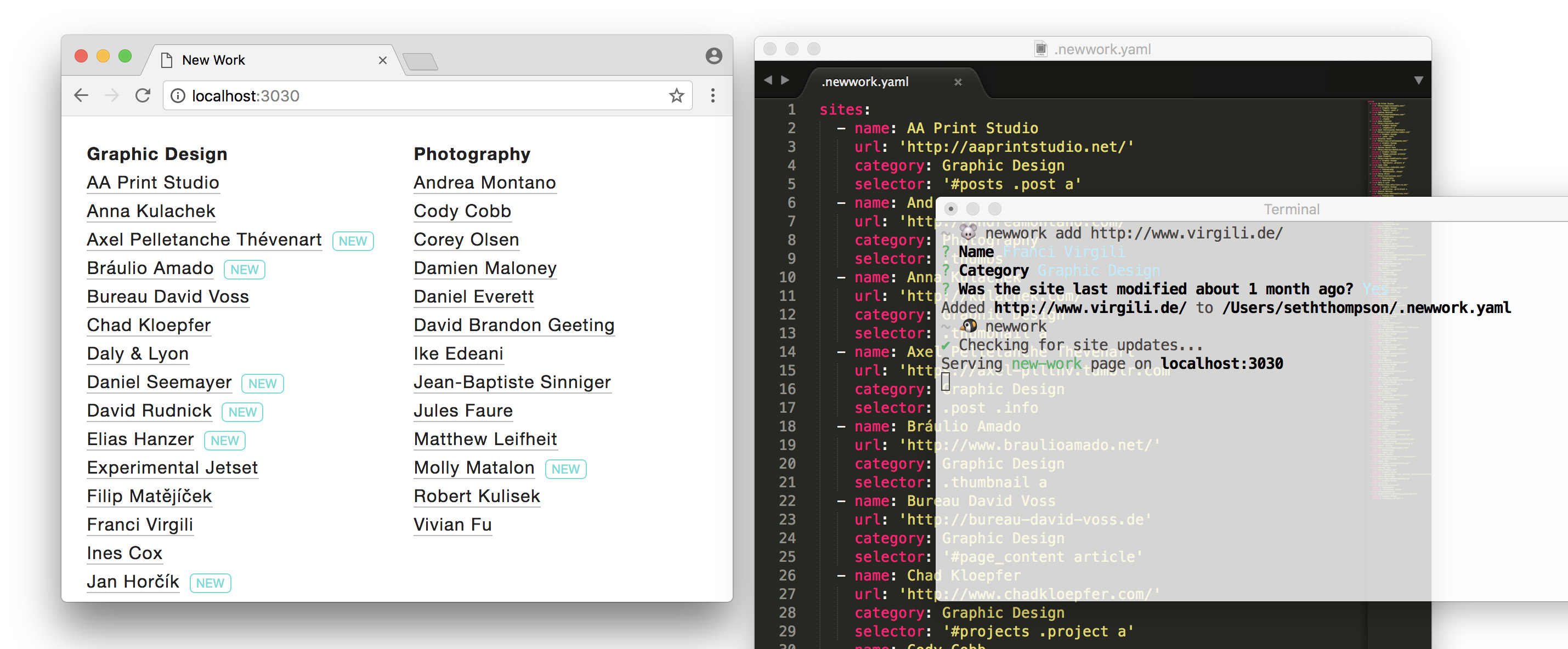
✨ Automagic: Automatically checks artists' websites for new work. Works by looking at a site's last-modified HTTP header or by diffing a specific HTML element.
📂 Organized: Keeps track of artists in various categories via a simple YAML file with a CLI helper.
⚡ Fast: Fetches sites in parallel for fast and efficient updates.
Installation
$ npm install new-work
Usage
Usage: newwork <command> [options]

  Commands:
    <default>                   Run 'newwork serve'
    serve                       Scrape, update, and serve a new-work page
    build                       Scrape, update, and save a new-work page to disk
    print                       Scrape, update, and print a table to the terminal
    add [url]                   Add an URL to your list of sites
    remove [url]                Remove an URL from your list of sites
    ls                          List all sites in your new-work page

  Available options:
    -i, --input <filename>      Input YAML file [default: ~/.newwork.yaml]
    -o, --output <filename>     Output HTML file [default: ./newwork.html]
    -l, --lockfile <filename>   Lockfile location [default: ~/.newwork.lock]
    -p, --port=<n>              Bind 'newwork serve' to a port [default: 3030]
    -h, --help                  Print usage
Guide
Run newwork add <url> to add a site to track.
Confirm the site's title / the artist's name.
Optionally specify a category (e.g. 'Photography').
If the site returns a last-modified header, you're done! Otherwise, you must manually specify an HTML element to diff for updates.
Open the site with a web inspector such as Chrome DevTools Elements panel. Search for an HTML element that will change when the site is updated. The could be a thumbnail on the homepage, a menu of projects, or a blog post element.
Specify a jQuery selector that will return the chosen element. For example, a link element inside a thumbnail with the class thumb may be referenced by the selector .thumb a. Only the first matched element will be used.
Repeat for additional sites.
Run newwork or newwork serve to open a list of all your sites. Sites that have been changed in the last 30 days are highlighted with a "new" tag.
JS API
status
Get the status of a list of sites to see whether new work has been posted.