$ np --help

  Usage
    $ np <version>

    Version can be:
      patch | minor | major | prepatch | preminor | premajor | prerelease | 1.2.3

  Options
    --any-branch            Allow publishing from any branch
    --branch                Name of the release branch (default: main | master)
    --no-cleanup            Skips np's node_modules cleanup step before install
    --no-tests              Skips tests
    --yolo                  Skips cleanup and testing
    --no-publish            Skips publishing
    --dry-run               Show tasks without actually executing them
    --tag                   Publish under a given dist-tag
    --contents              Subdirectory to publish
    --no-release-draft      Skips opening a GitHub release draft
    --release-draft-only    Only opens a GitHub release draft for the latest published version
    --no-release-notes      Skips generating release notes when opening a GitHub release draft
    --test-script           Name of npm run script to run tests before publishing (default: test)
    --no-2fa                Don't enable 2FA on new packages (not recommended)
    --message               Version bump commit message, '%s' will be replaced with version (default: '%s' with npm and 'v%s' with yarn)
    --package-manager       Use a specific package manager (default: package.json packageManager/devEngines)
Interactive UI
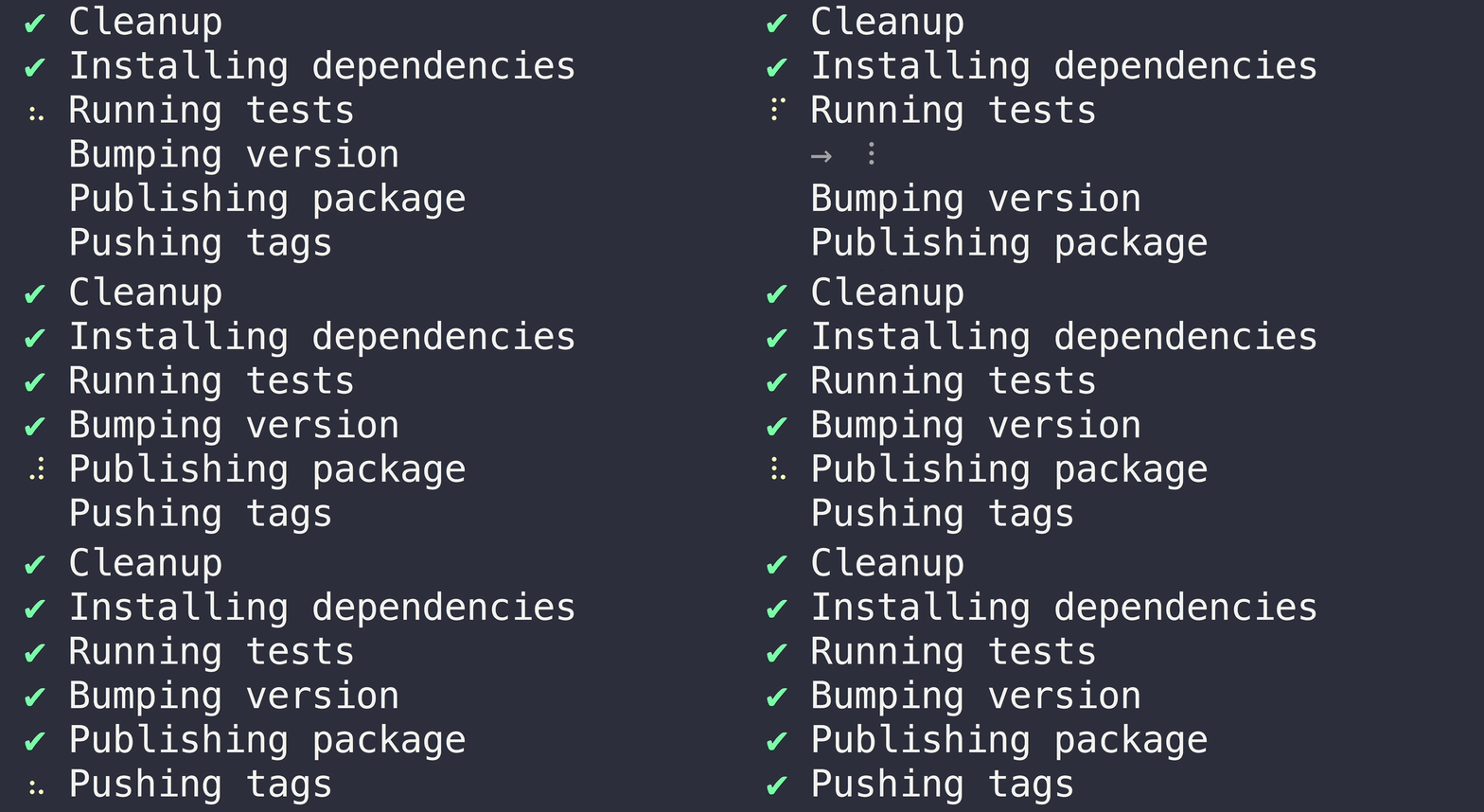
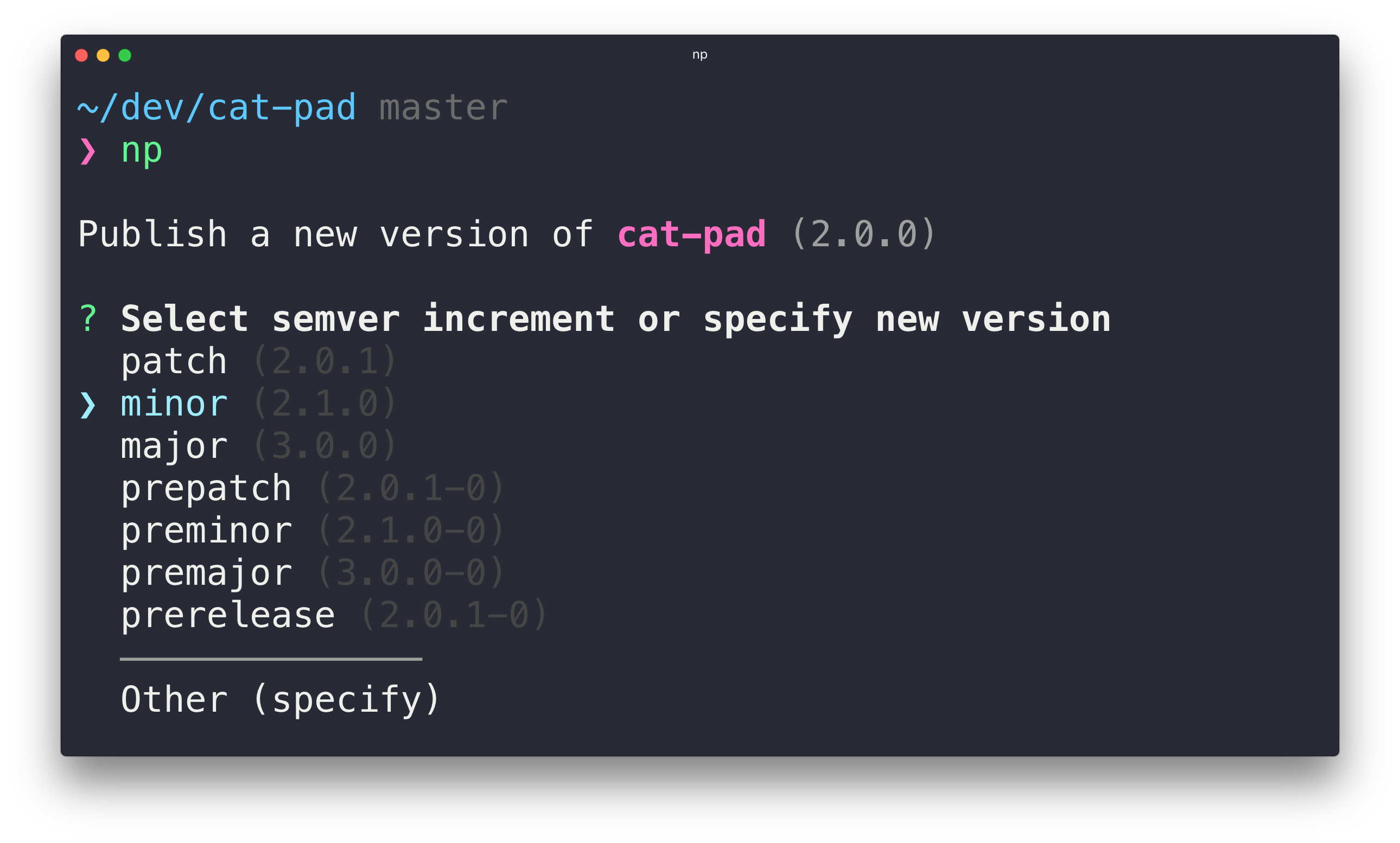
Run np without arguments to launch the interactive UI that guides you through publishing a new version.
Config
np can be configured both globally and locally. When using the global np binary, you can configure any of the CLI flags in either a .np-config.js (as CJS), .np-config.cjs, .np-config.mjs, or .np-config.json file in the home directory. When using the local np binary, for example, in a npm run script, you can configure np by setting the flags in either a top-level np field in package.json or in one of the aforementioned file types in the project directory. If it exists, the local installation will always take precedence. This ensures any local config matches the version of np it was designed for.
Currently, these are the flags you can configure:
anyBranch - Allow publishing from any branch (false by default).
branch - Name of the release branch (main or master by default).
cleanup - Delete node_modules before installing dependencies (true by default). Setting it to false only skips np's explicit cleanup step; the package manager install command still runs and may replace node_modules itself. Use yolo to skip install entirely.
tests - Run npm test (true by default).
yolo - Skip cleanup and testing (false by default).
publish - Publish (true by default).
dryRun - Show tasks without actually executing them (false by default). The CLI also accepts --preview as an alias.
tag - Publish under a given dist-tag (latest by default).
contents - Subdirectory to publish (. by default).
releaseDraft - Open a GitHub release draft after releasing (true by default).
releaseNotes - Auto-generate release notes when opening a GitHub release draft (true by default).
testScript - Name of npm run script to run tests before publishing (test by default).
2fa - Enable 2FA on new packages (true by default) (setting this to false is not recommended).
message - The commit message used for the version bump. Any %s in the string will be replaced with the new version. By default, npm uses %s and Yarn uses v%s.
packageManager - Set the package manager to be used. Defaults to the packageManager or field in package.json, so only use if you can't update package.json for some reason.
For example, this configures np to use unit-test as a test script, and to use dist as the subdirectory to publish:
You can also add np to a custom script in package.json. This can be useful if you want all maintainers of a package to release the same way (Not forgetting to push Git tags, for example). However, you can't use publish as name of your script because it's an npm defined lifecycle hook.
If you want to run a user-defined test script before publishing instead of the normal npm test or yarn test, you can use --test-script flag or the testScript config. This can be useful when your normal test script is running with a --watch flag or in case you want to run some specific tests (maybe on the packaged files) before publishing.
For example, np --test-script=publish-test would run the publish-test script instead of the default test.
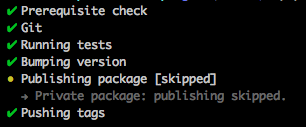
You can use np for packages that aren't publicly published to npm (perhaps installed from a private git repo).
Set "private": true in your package.json and the publishing step will be skipped. All other steps
including versioning and pushing tags will still be completed.
Public scoped packages
To publish scoped packages to the public registry, you need to set the access level to public. You can do that by adding the following to your package.json:
"publishConfig": { "access": "public"}
If publishing a scoped package for the first time, np will prompt you to ask if you want to publish it publicly.
Note: When publishing a scoped package, the first ever version you publish has to be done interactively using np. If not, you cannot use np to publish future versions of the package.
Private Org-scoped packages
To publish a private Org-scoped package, you need to set the access level to restricted. You can do that by adding the following to your package.json:
"publishConfig": { "access": "restricted"}
Publish to a custom registry
Set the registry option in package.json to the URL of your registry:
If a package manager is not set in package.json (packageManager or devEngines.packageManager), via configuration (packageManager), or via the CLI (--package-manager), np will attempt to infer the best package manager to use by looking for lockfiles. But it's recommended to set the packageManager field in your package.json to be consistent with other tools. See also the corepack docs.
Publish with a CI
If you use a Continuous Integration server to publish your tagged commits, use the --no-publish flag to skip the publishing step of np.
Publish to gh-pages
To publish to gh-pages (or any other branch that serves your static assets), install branchsite, an np-like CLI tool aimed to complement np, and create an npm "post" hook that runs after np.
npm install --save-dev branchsite
"scripts": { "deploy": "np", "postdeploy": "bs"}
Initial version
For new packages, start the version field in package.json at 0.0.0 and let np bump it to 1.0.0 or 0.1.0 when publishing.
Release an update to an old major version
To release a minor/patch version for an old major version, create a branch from the major version's git tag and run np:
$ git checkout -b fix-old-bug v1.0.0 # Where 1.0.0 is the previous major version# Create some commits…$ git push --set-upstream origin HEAD$ np patch --any-branch --tag=v1
The prerequisite step runs forever on macOS
If you're using macOS Sierra 10.12.2 or later, your SSH key passphrase is no longer stored into the keychain by default. This may cause the prerequisite step to run forever because it prompts for your passphrase in the background. To fix this, add the following lines to your ~/.ssh/config and run a simple Git command like git fetch.
The ignore strategy, either maintained in the files-property in package.json or in .npmignore, is meant to help reduce the package size. To avoid broken packages caused by essential files being accidentally ignored, np prints out all the new and unpublished files added to Git. Test files and other common files that are never published are not considered. np assumes either a standard directory layout or a customized layout represented in the directories property in package.json.
FAQ
I get an error when publishing my package through Yarn
If you get an error like this…
❯ Prerequisite check✔ Ping npm registry✔ Check npm version✔ Check yarn version✖ Verify user is authenticatednpm ERR! code E403npm ERR! 403 Forbidden - GET https://registry.yarnpkg.com/-/package/my-awesome-package/collaborators?format=cli - Forbidden
…please check whether the command npm access list collaborators my-awesome-package succeeds. If it doesn't, Yarn has overwritten your registry URL. To fix this, add the correct registry URL to package.json:
If np hangs indefinitely during publishing, common causes include:
Lifecycle scripts that don't exit
npm automatically runs lifecycle hooks like prepublish, publish, and postpublish during publishing. If these scripts don't exit (e.g., running in watch mode), np will hang.
{ "scripts": { "test": "vitest", "publish": "npm run test && np" }}
Solution: Don't name your scripts publish, prepublish, or postpublish (these are reserved npm lifecycle hooks). Use names like release instead:
provenance - Publish with npm provenance statements (false by default). Requires npm 9.5.0+ and a supported CI environment (GitHub Actions or GitLab CI/CD).
remote - Git remote to push tags and commits to. Useful when publishing from a fork where origin is your fork and upstream is the main repository.
stage - Use staged publishing (false by default). Instead of going live immediately, the version is uploaded to a staging queue and np prints the stage approve command to run when you're ready to promote it (which requires 2FA and can be done later, for example from your phone or npmjs.com). Only supported with npm and pnpm, and only for packages that already exist on the registry.